Ventoy: Turn Your USB Drive into a Bootable OS Swiss Army Knife
Tired of the hassle of creating multiple bootable USB drives for different operating systems?
Ventoy is here to revolutionize the way you boot into your favorite OS. This powerful, open-source tool transforms your USB drive into a versatile boot loader, allowing you to store multiple OS ISOs and boot them directly.
Table of Contents
Why Ventoy?
- Simplicity: No more complex partitioning or formatting.
- Versatility: Boot into Windows, Linux, macOS, or any other OS with a single USB drive.
- Speed: Quickly switch between different operating systems without the need for multiple drives.
- Convenience: Keep all your favorite OS ISOs in one place.
Getting Started with Ventoy
✅ What You'll Need:
- A USB Drive: Choose a drive with sufficient storage capacity to hold your desired OS ISOs.
- Ventoy Software: Download the latest version from the official website: https://www.ventoy.net/en/download.html
- OS ISOs: Download the ISO files of your preferred operating systems.
✅ Installation:
- Extract Ventoy: Unzip the downloaded Ventoy software. I choose the Windows version.
- Run the Installer: Double-click the
"Ventoy2Disk.exe"file.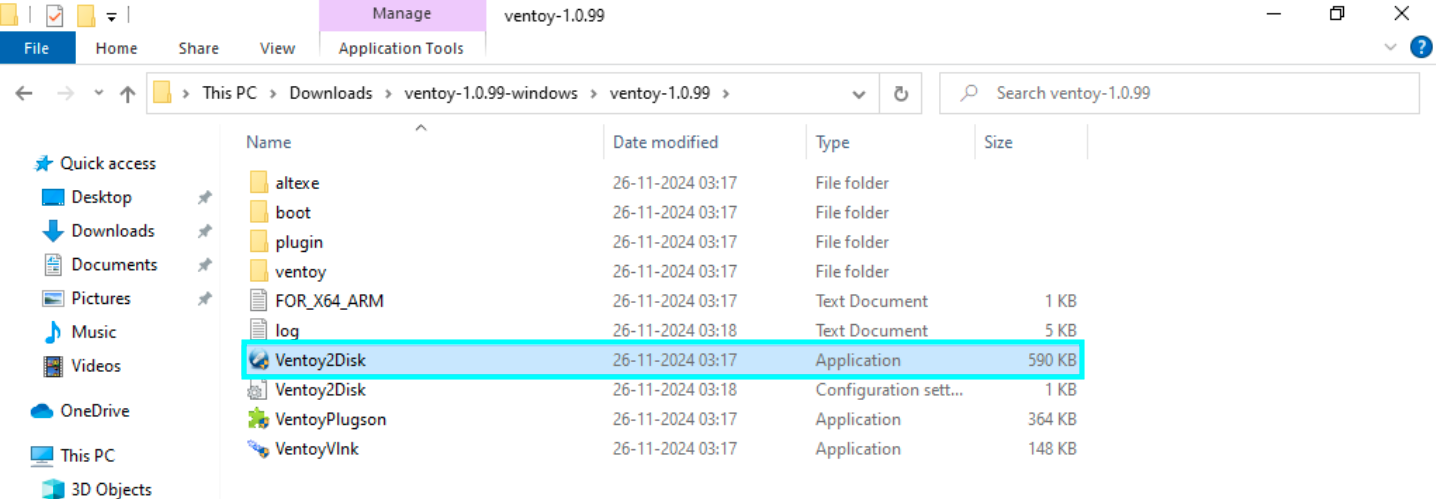
- Select Your Drive: Choose the USB drive you want to use from the dropdown menu.
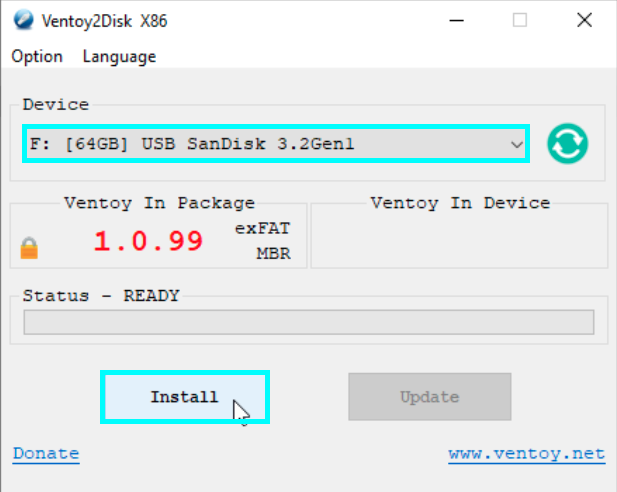
- Install Ventoy: Click the
"Install"button.
✅ Adding OS ISOs:
- Copy ISOs: Simply copy the downloaded OS ISO files to the root directory of your Ventoy USB drive.
✅ Booting Your Chosen OS:
- Plug in Your Drive: Connect the Ventoy USB drive to your computer.
- Boot from USB: Restart your computer and select the USB drive as the boot device in your BIOS/UEFI settings.
- Choose Your OS: Select your desired operating system from the Ventoy boot menu.
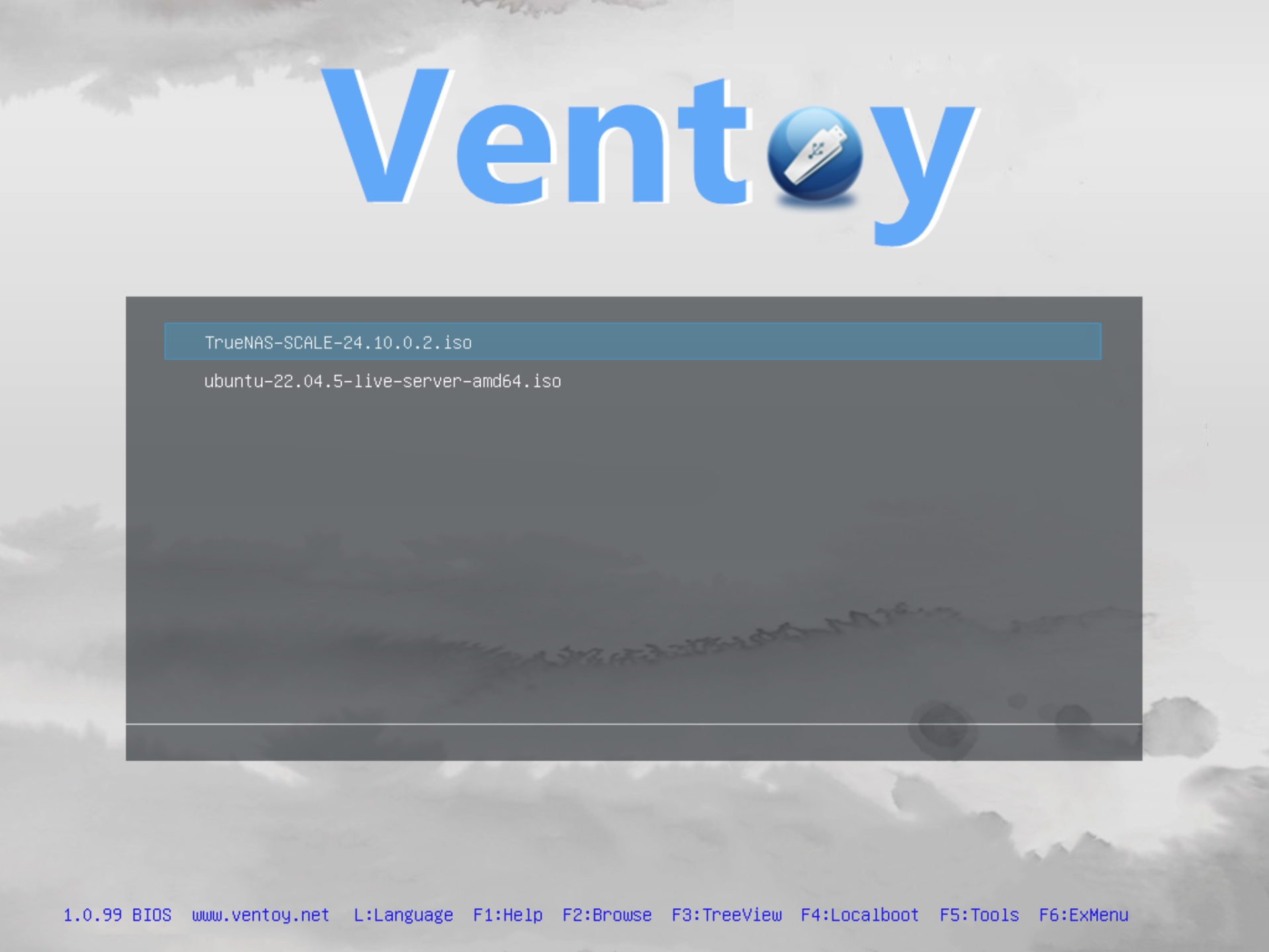
That's it! You're now ready to boot into any of your chosen operating systems.