How to Configure Telegram and Slack Notifications in Uptime Kuma

There's nothing worse for a sysadmin, developer, or website owner than discovering a critical service has been down for hours and you were the last to know. Uptime Kuma is a phenomenal open-source uptime monitoring tool, but its true power lies in its ability to instantly alert you when something goes wrong. That’s where notifications come in. At its core, an Uptime Kuma notification is an automated, real-time alert sent to your preferred communication channel whenever the status of a monitored service changes. What makes this feature so essential is its incredible flexibility - Uptime Kuma boasts native support for over 50+ notification services, allowing you to integrate alerts directly into your existing workflow. Whether your team lives in Slack, communicates via Discord or Telegram, relies on Microsoft Teams, or prefers traditional methods like email and SMS, Uptime Kuma can connect to it.
While Uptime Kuma supports a vast array of services, this guide will focus on two of the most popular and versatile notification channels used today: Slack and Telegram. Their unique blend of instant delivery, rich formatting, and robust API support makes them a top choice for both mission-critical production environments and sophisticated homelab setups. We will provide a detailed, step-by-step walkthrough for integrating Uptime Kuma with both platforms, ensuring you can build a reliable and responsive alerting system tailored to your specific needs.
Why Choose Slack or Telegram for Your Alerts?
Before we dive into the setup, let's quickly cover why these two platforms were choosen:
- Slack: The go-to tool for professional team collaboration. By piping Uptime Kuma alerts into a dedicated #monitoring or #alerts channel, your entire team gains immediate visibility into system status, facilitating faster response and incident management.
- Telegram: A fast, secure, and lightweight messenger that is perfect for personal projects, homelabs, or small teams. Its bot API is incredibly simple to use, and notifications are delivered instantly to all your devices, making it ideal for on-the-go alerts without the overhead of a full team-collaboration suite.
Prerequisites
To follow this guide, you will need:
- A running instance of Uptime Kuma.
- Administrator-level access to your Uptime Kuma instance.
- A Slack workspace with permissions to create apps OR a Telegram account.
Setting Up Slack Notifications with Uptime Kuma
Integrating Uptime Kuma with Slack involves creating a simple "App" in your workspace that can post messages to a designated channel.
Step 1: Create a New Slack App
- Navigate to the Slack API website: https://api.slack.com/apps. Sign-in if required.
- Click the Create New App button.
- Choose From scratch.
- Give your app a name (e.g., "Uptime Kuma Notifier") and select the Slack Workspace you want to send alerts to.
- Click Create App.
Step 2: Enable Incoming Webhooks
For the app to send messages, you need to create an incoming webhook.
- From the sidebar of your new app's settings, click on Incoming Webhooks.
- Activate the incoming webhook by toggling the switch to On.
- Click Add New Webhook.
- From the drop down, select the Slack channel where you want to receive alerts (e.g., #uptime-kuma-alerts).
- Click "Allow".
- Copy the Webhook URL. You'll need it in Uptime Kuma.
Step 3: Configure the Notification in Uptime Kuma
- Log into your Uptime Kuma dashboard.
- Click your profile picture in the top right and go to Settings.
- Navigate to the Notifications tab and click Setup Notification.
- Select Slack as the Notification Type.
- Friendly Name: Give your notification a recognizable name (e.g., "UAT Slack Alerts").
- Webhook URL: Paste the webhook URL you copied earlier.
- Channel Name: Enter the name of the channel you invited the bot to in Step 2, including the hashtag (e.g., #uptime-kuma-alerts).
- Toggle the options you want, such as "Default Enabled" and "Apply to all existing monitors".
- Click Test to send a sample notification. If everything is configured correctly, you'll see a test message appear in your designated Slack channel!
- Click Save.

Setting Up Telegram Notifications with Uptime Kuma
Telegram's setup is even more straightforward, relying on its "BotFather" to create a bot and get an API token.
Step 1: Create a Bot with BotFather
- Open your Telegram app and search for the user @BotFather (it will have a blue verification checkmark).
- Start a chat with BotFather and send the command: "/newbot".
- BotFather will ask for a name for your bot. Give it a recognizable name (e.g., "Uptime Kuma Monitor Bot").
- Next, it will ask for a username, which must be unique and end in bot (e.g., uptime_kuma_uat_bot).
- BotFather will reply with a confirmation message that includes your HTTP API token. It will look something like "1234567890:ABCDEFGHIJKLMNOPQRSTUVWXYZ-123456". Copy this token immediately.
Step 2: Enable Group Setting for your Bot.
Telegram allows you to add your bot to a group so that everyone part of the group receives notifications. You need to enable this first.
- In the BotFather chat window, send the command: "/setjoingroups".
- Select your bot (e.g., "uptime_kuma_uat_bot")
- Click "Enable".
Step 3: Create a Group, Add your Bot and Start it.
Let's create a "New Group", add members and the bot to it and finally start the bot. Uptime Kuma needs to know where to send the message. This destination is identified by a Chat ID. To get the Chat ID, you need to start the Bot.
- In your Telegram app, click on the "Pencil" icon and choose "New Group".
- Add members from your contact list to the group and click "Next".
- Give a group name (e.g., "Uptime Kuma Alerts - UAT").
- Click Add Members and type your bot name including the "@" symbol (e.g., "@uptime_kuma_uat_bot"). Select it and click OK.
- Click Create.
- In the newly created Group chat send the command: "/start".
This will start the bot in the group and enable Chat ID which will be used by Uptime Kuma.
Step 4: Configure the Notification in Uptime Kuma
- Log into your Uptime Kuma dashboard.
- Click your profile picture in the top right and go to Settings.
- Navigate to the Notifications tab and click Setup Notification.
- Select Telegram as the Notification Type.
- Friendly Name: Give your notification a recognizable name (e.g., "UAT Telegram Alerts").
- Bot Token: Paste the token obtained in Step 1 (e.g., "1234567890:ABCDEFGHIJKLMNOPQRSTUVWXYZ-123456").
- Chat ID: Click Auto Get. This way a request will be sent by Uptime Kuma to Telegram using the token to automatically fetch the Chat ID.
- Toggle the options you want, such as "Protect Forwarding/Saving" (recommended), "Default Enabled" and "Apply to all existing monitors".
- Click Test to send a sample notification. If everything is configured correctly, you'll see a test message appear in your designated Telegram group!
- Click Save.

Link Notifications to Existing Monitors in Uptime Kuma
Once your Slack and Telegram integrations are set up, it’s time to assign them to existing monitors.
Step 1: Enable Notifications for a Monitor
- In the Uptime Kuma dashboard, identify the monitor you want to test (e.g., A docker container running nginx publishing webpage on port 8008).
- Select the Monitor and Click Edit.
- Enable the preferred Notifications system (Slack or Telegram).
- Click Save
Step 2: Manually Trigger a Notification (Test Downtime Alert)
To ensure everything works, lets simulate a failure and test the alerts:
Example: Using Docker to Bring Down a Service
- Login to the node where the monitored service runs.
- Stop the service temporarily: "docker stop nginx".
- Wait for Uptime Kuma to detect the downtime (based on your check interval).
- Check your Slack or Telegram for a downtime alert.
- Restart the service: "docker start nginx".
- Confirm that a recovery notification is also received.
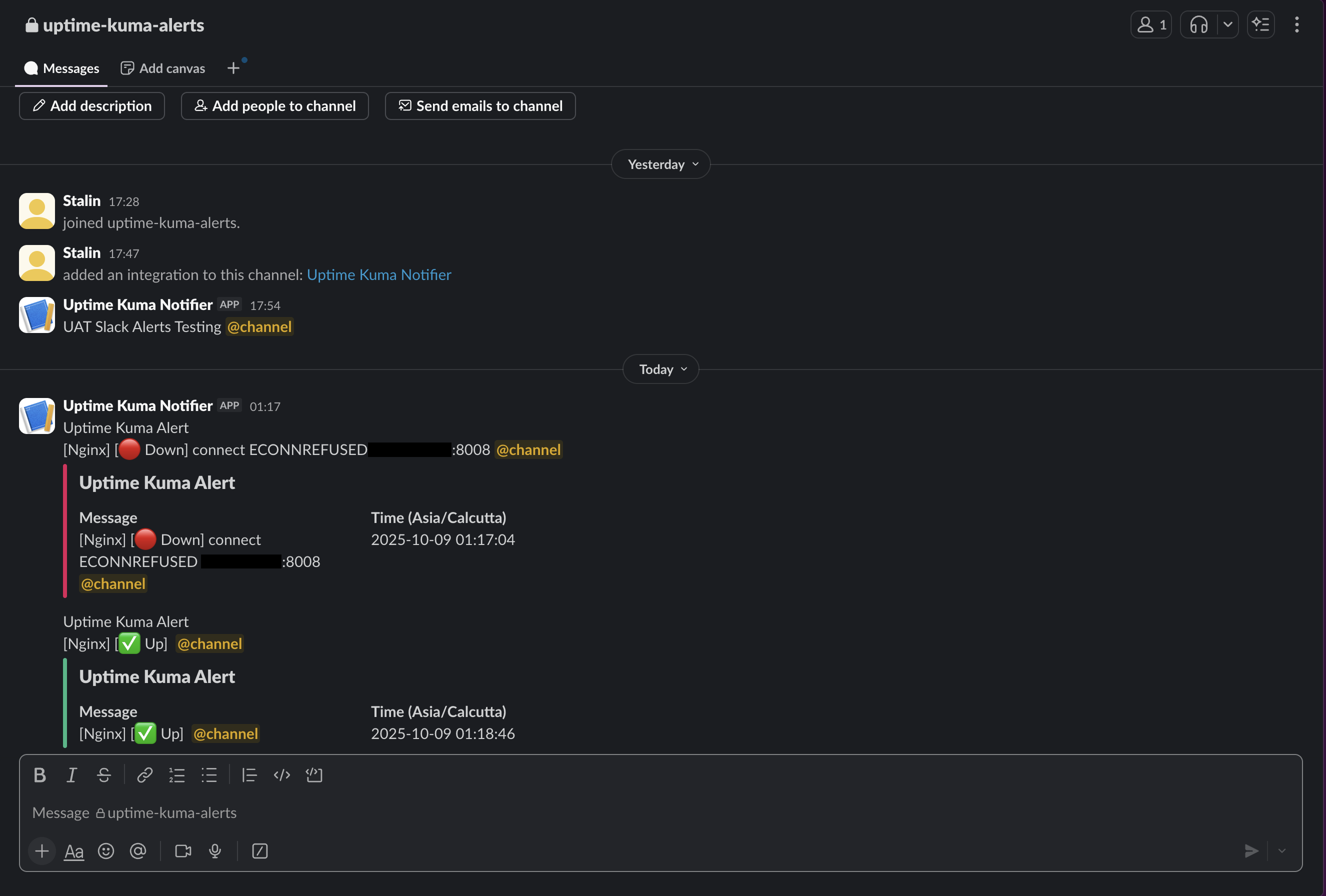
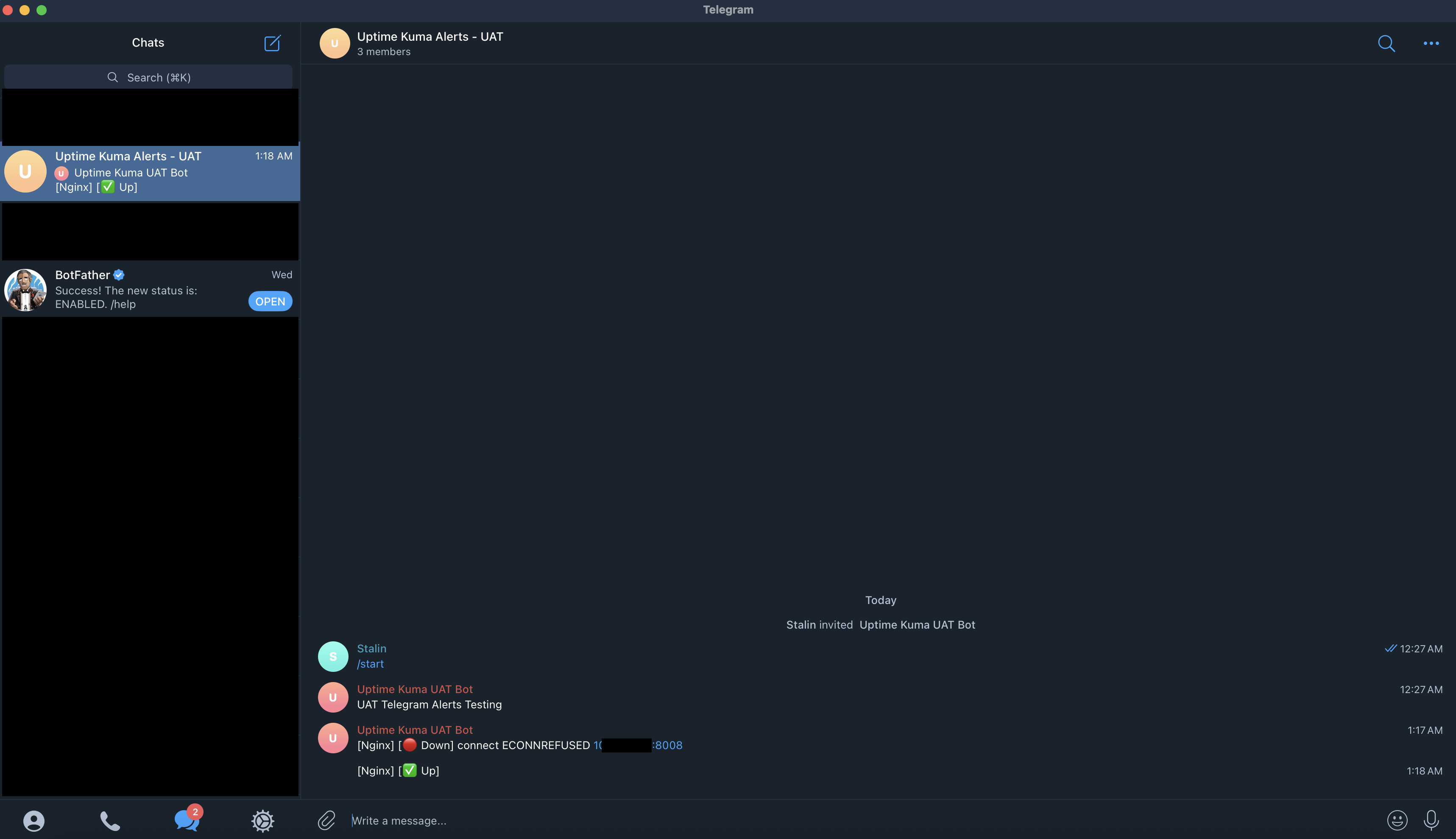
You should be able to see alerts similar to the one's in the below screenshot if everything is configured correctly.
Conclusion: Be the First to Know When Things Go Down
In this guide, we walked through how to:
- Set up Slack and Telegram notifications in Uptime Kuma.
- Create bots and webhook integrations.
- Link these notifications to your existing monitors.
- Simulate downtime to verify that alerts work.
Whether you're running a high-availability production setup or managing a personal homelab, having real-time alerts means you're always one step ahead.
With Uptime Kuma's flexible notification system, you can ensure you're the first to know when something goes down—not your users, clients, or customers. Implementing this in your environment gives you peace of mind and a faster response time, keeping your systems reliable and your team informed.